NTech

Menu
  • Home
  • Technology
    • Internet
    • Market
    • Stock
  • Downloads
    • Dvd
    • Games
    • Software
      • Office
  • Parent Category
    • Child Category 1
      • Sub Child Category 1
      • Sub Child Category 2
      • Sub Child Category 3
    • Child Category 2
    • Child Category 3
    • Child Category 4
  • Featured
  • Health
    • Childcare
    • Doctors
  • Uncategorized

Friday, 15 July 2016

What Is A Motherboard? What Are The Different Components Of A Motherboard?
By ntech22:49 No comments

What Is A Motherboard? What Are The Different Components Of A Motherboard?

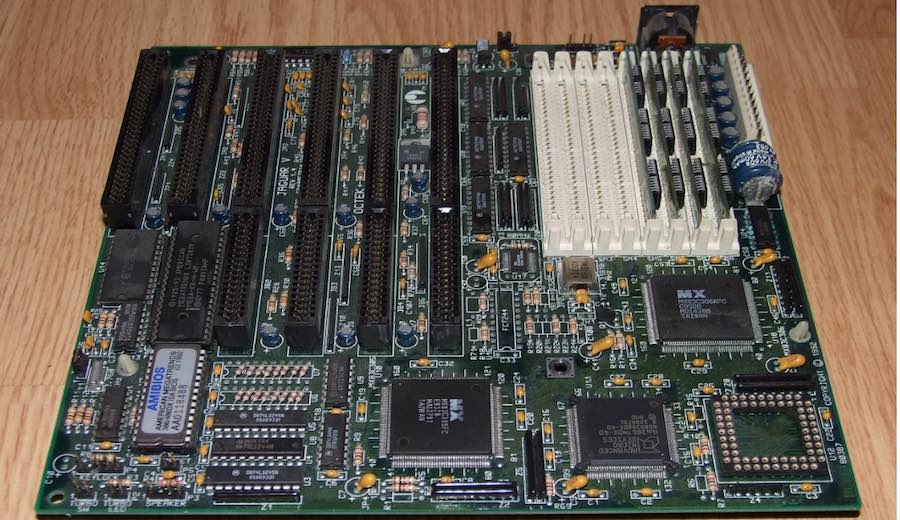
Motherboard
Image: Wikipedia
Short Bytes: A motherboard acts as a platform for establishing connections between various components that are essential for the successful operation of a computer. A printed circuit board houses all the components, either soldered or connected discretely through expansion slots. A motherboard can also be defined as the basic building block of a computer.
A computer comprises of many components like the CPU, monitor, keyboard, mouse, and much more. All these components talk to each other via a common hardware known as the motherboard or simply mobo. Most users don’t have much idea about the green colored thing placed inside their machine. So, the question, “What is a Motherboard?” sounds obvious to the ears.Over the years, I have evolved from a naive computer user to the one who knows something about the electronic devices which make our lives easier. I’ll try to elaborate the knowledge that I’ve gained about what a motherboard is and what are the components of a motherboard? So, let us dive into the world of motherboards.

What is a Motherboard?

A motherboard is basically a printed circuit board used to connect different parts of a computer like the central processing unit, memory, printer, mouse, keyboard, graphics card, and other peripherals through physical slots and interface connectors. If you’ve ever opened up your machine, you might’ve observed different lines going in various directions. These lines constitute a circuit used to allow communication between different hardware devices attached to the motherboard. Electrical signals carrying data information pass through these lines. The flow of current in the printed circuit board is similar to a normal circuit, though, less in voltage. The advantage is that it can be accommodated in less space than the conventional one.

History of Motherboard

The development of motherboards has been parallelly propelled with the advent of microprocessors–your regular CPU chip like Intel Core i5–in computer machines. Before the microprocessors, the computers housed multiple PCBs which were connected to each other through a backplane. A backplane is a parallel arrangement of electrical connectors, each of them aligned with the other such that every pin from a connector gets linked with the relative pin of the other. This backplane was used to connect multiple PCBs together. Components like the central processing unit (CPU), memory, and other peripherals were connected to different PCBs and then combined using the backplane.
Over the time, with microprocessors coming into existence, these backplanes became a thing of the past and various components were integrated directly into a single Printed Circuit Board. Thus, a single PCB, termed as Motherboard, was only required for a computer.
In the 1980s, companies like Apple and IBM released the documentation and blueprints of their motherboards. This was intended to allow the production of replacement motherboards for their popular computers like the Apple II and the IBM PC. The motherboards began to become more consolidated but complex at the same time. Super I/O (single ICs) chips started to exist in the motherboard in the late 80s, allowing support for low-speed peripherals like mouse, keyboard, floppy drive, etc.
As the clock started approaching the millennium year, the need for expansion slots was eliminated for the components like video, storage, audio, and network adapters by embedding them into the motherboard. Currently, the motherboards have taken a leap to a stage where almost negligible changes can be made after a motherboard is manufactured. The size of the motherboard has reduced drastically since the last few decades and may continue to shrink down further.

How big is a Motherboard?parts of motherboard

Form Factor is the term given to the shape and size of a motherboard. Generally, all types of motherboards are designed according to predefined specifications creating a similarity between the motherboards manufactured by different companies. However, the size may differ to a small extent from brand to brand.
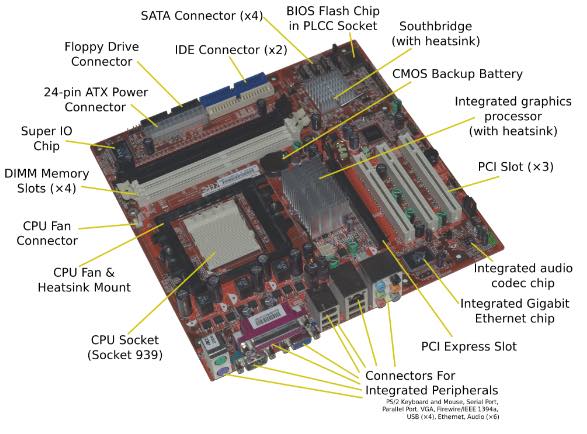
ATX, developed by Intel, is the most widely used configuration specification for desktop motherboards which is implemented by almost all the major manufacturers.
MiniPC is a form factor specification given for small sized computers like the Apple Mac Mini and Intel NUC. These machines are used for basic computing needs like web surfing, word processing, video playback, etc. Though, the advancement in technology has made these machines more than an internet surfing device.
Also Read: What is DNS (Domain Name System) and How it Works?

What’s inside a Motherboard?

After having a look at how motherboards have evolved over the years, we will now have a look at the components of a motherboard.

Memory Slotsmotherboard memory slots

These are the long slots attached to the motherboard to install DIMM chips to the computer. DIMM stands for Dual Inline Memory module which consists of DRAM integrated circuits. The Dynamic Random Access Memory (DRAM) is a volatile memory that stores the data and files being executed by the CPU. Many variants of DRAM exist like DDR, DDR2, DDR3, DDR4.
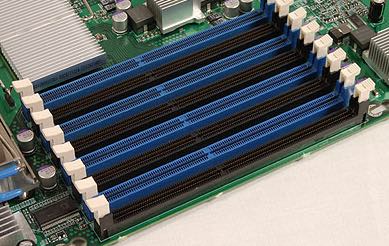
Earlier machines, between the 1980s and late 1990s, used SIMM (Single Inline Memory Module) type memory modules.

Sockets

You might’ve heard terms like LGA 1150 or AM3+. Getting the correct socket type for a processor is a common dilemma faced when we assemble a computer, for example, a desktop machine. So, what exactly a socket is? A socket is a place where the microprocessor or CPU sits on the motherboard. Due the socket, a microprocessor doesn’t need to be soldered to the motherboard. We can remove it anytime as per our will.
The type of sockets used are:
LGA (Land Grid Array) – In this, the pins are present on the socket.
PGA (Pin Grid Array) – In this, the pins are present on the CPU chip.
ZIF (Zero Insertion Force) – In this, while inserting the CPU chip the contacts on the socket are made loose by lifting a lever. Thus, the CPU gets fitted easily.
The LGA type sockets are mainly used by Intel whereas, AMD uses the PGA-ZIF type sockets. Let’s take the example of Intel, they make many socket variants. The difference comes in the pin arrangement. That’s why we have to be very careful while deciding the CPU and socket type.

Chipset

It is an IC present on the motherboard that is responsible for the creation of a communication channel between the CPU and various components like memory, and peripheral devices connected to the motherboard. Without a chipset, all the different parts will not be able to talk to the central processing unit and this will directly affect the performance of the computer. Chipset consists of two parts:
Northbridge which is directly attached to the CPU through the front side bus (FSB). It uses the memory controller to contact the RAM chip to transfer data between CPU and RAM. In addition to this, it also establishes communication with the PCI Express bus.
Southbridge links to the USB ports, SATA interface. It doesn’t directly report to the CPU, all the information has to pass through the northbridge before reaching the CPU.

Clock Generatordesktop pc clock generator

The basic operation of a clock generator is to synchronize the operations of different components of a motherboard. It generates a clock signal that jumps between high and low frequencies, thus creating a metronome for the coordination of actions. I won’t jump into its depth to tell you the technicalities.

Expansion Card Slots

You might be familiar with the term PCI (Peripheral Component Interconnect). It is used to install additional components like Wireless adapters, graphics cards, etc. PCI is an expansion bus that is used to transfer data between the computer (i.e. CPU and RAM) and the connected peripheral device.
A bus can be understood as a path through which the data travels. The term refers to both the software and the hardware required to transfer data. A bus has two parts, the address bus which passes the information about where the data should go, and the data bus which carries the actual data to be transferred.
Modern motherboards include the PCIe (PCI Express) slots which are an upgrade over the conventional PCI and PCI-X expansion bus standards.

Storage Connectors

Motherboards are equipped with connectors for attaching storage devices like magnetic hard drives, optical drives, and SSDs. These devices work through an interface known as SATA. SATA or Serial ATA is also a computer bus that enables connection between the storage media and the computer through the host bus adapters present on the motherboard.
Various SATA versions namely, SATA 3.2, mSATA, eSATA, etc exist and are used depending on the configuration of the machine. For example, mSATA or mini-SATA is used for SSDs and hard drives installed in laptops.

Power ConnectorsPOWER CONNECTOR MOTHERBOARD

Computers have a main power supply unit but it is not possible to deliver power to all the components directly from it. Hence, power connectors are used to distribute the power from the main supply to various components like RAM, CPU, chipset, and expansion cards.
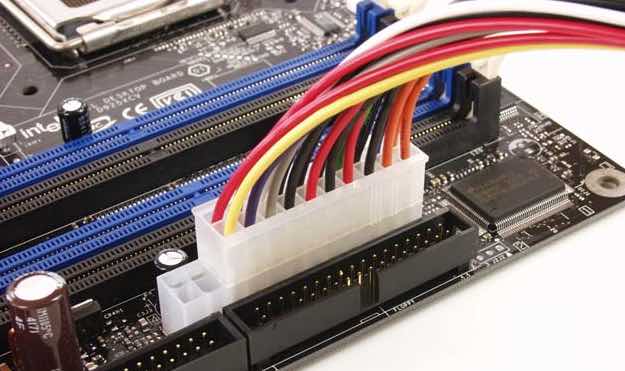
Some modern expansion cards like the high-end graphics cards require more power which can’t be provided by the main power connectors of the computer. So, these graphics cards come with their own power connectors to get the right amount of electrical power.
Motherboards also have Flash ROM which a non-volatile memory chip uses to store the BIOS of the system. Apart from these, additional components like the USB (Universal Service Bus), disk controllers, ethernet controllers, etc. exist on the motherboard. Modern motherboards also have on-board graphics chips (like Intel HD Graphics) and sound cards which are directly soldered on them. The internal graphics cards are capable of handling the basic graphics processing of the machine and provide video output through VGA and HDMI ports.

Operating Temperature

Improper temperatures in case of motherboards may lead to a reduction in performance and lower life expectancy over the course of time. Hence, various devices like the heat sink and cooling fans have been designed to bring down the temperature when the heat is generated by the motherboard’s components.
The ideal operating temperature for motherboards is around 45-degree celsius. Your computer won’t be happy with you if you don’t equip it with an appropriate cooling system, raising the temperature above intolerable limits. You might have heard about frying of motherboards due to high operating temperatures.
So, that’s all I know about Motherboards. If I have failed to include some major point, please let me know in the comments section below.
Read More

Thursday, 30 June 2016

It’s Official: Android N Is Android Nougat

By ntech23:14 No comments

It’s Official: Android N Is Android Nougat

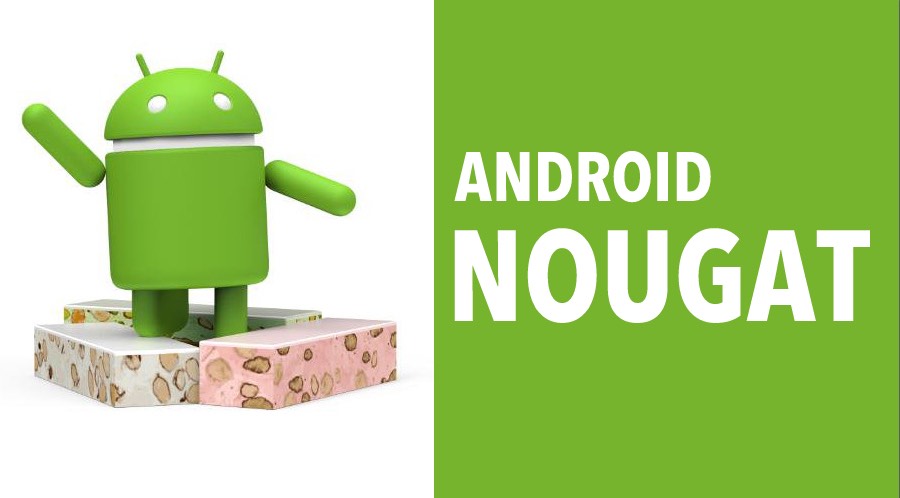
ANDROID NOUGATShort Bytes: After months of speculations and guesses, Google has finally revealed the official name of the next version of the Android operating system. Via its Twitter and Snapchat accounts, the tech giant revealed that Android N will be called Android Nougat.
At its Google I/O conference in May, Google unveiled the latest iteration of its mobile operating system i.e. Android N.Today, finally, Android N has got an official name i.e. Android Nougat. Google announced this news on its Twitter and Snapchat accounts.
For the first time ever, Google invited suggestions from the users and asked them to submit ideas for naming this sweet delicacy.
Introducing #AndroidNougat. Thank you, world, for all your sweet name ideas! #AndroidNReveal pic.twitter.com/7lIfDBwyBE
— Android (@Android) June 30, 2016
Ever since its announcement, Google has been dropping hints. While most people were rooting for names like Android Nutella, Google was using Android New York Cheesecake as an internal codename for the mobile operating system.
android nougat android n
Before releasing the final name, earlier in the day, the tech giant showed off different statues showing various sweet-flavored Android names.
However, Google didn’t reveal if Nougat was the most voted/suggested–I doubt that–Android name.
Did you find this article interesting? Don’t forget to drop your feedback in the comments section below.
Read More

Wednesday, 29 June 2016

How To Create Undeletable Folder In Windows

By ntech21:30 No comments
To know the trick to protect your valuable files then just follow the below steps that how can you create a folder that cannot be deleted or renamed. Step starts from CMD as Command Prompt from your computer, get the details instruction from the below steps.
Step1. Open CMD as Command Prompt. (Go to Start and type CMD)
Command Prompt
Command Prompt
Note: After this step make sure that you will not select a root directory, means, you can only create this folder on non-rooted drives such as D, E, F, G not the C drive because you have installed your windows on that Drive.
Step2. Open CMD and type E: and hit enter.
Select Your Desire Drive I have selected E:
Step3. Now type md con\ (MD represent Make Directory) Hit enter.
Note Why We Use con?: Files may be copied to devices. For example, copy file con outputs file to the screen console. Devices themselves may be copied to a destination file, For example, copy con file takes the text typed into the console and puts it into FILE, stopping when EOF (Ctrl+Z) is typed.
Now Type md con
Now Type md con\
Note: You just created a new folder on E Drive, just check it out whether it worked or not, Confirm? OK if yes that means you created a folder, now delete that folder to make sure it is working as undeletable as Title of the tutorial mentioned, now put some folders and music files under con and again try to delete con folder if you see no changes that mean it worked on your computer.
Now Check Your Computer Drive

Now how to delete the undeletable folder? Follow below steps again!

Step. open your CMD again, type E: hit enter and again type rd con\ (Remove Directory) hit enter.
To Delete The Same Folder Type rd con
To Delete The Same Folder Type rd con\
Your file is deleted. everything is fine, just put the value or code correctly and you got what you want. Just make sure whether you are a programmer or not, typing a perfect code is the only genuine work, if you mislead or mistype then your code then it will not perform.
Stay ON, comment below if you want to know more tricks on the windows computer.
Read More

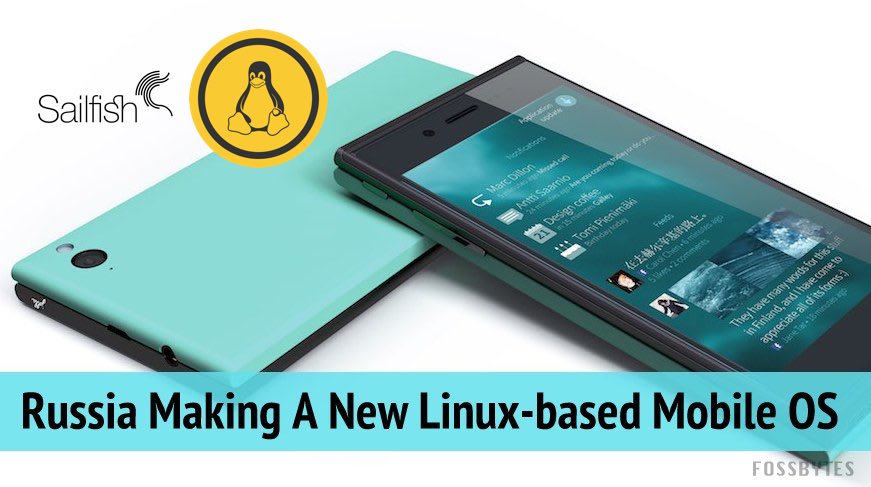
Russia Is Making A New Linux-based Mobile Operating System To Kill Android And iOS

By ntech21:01 No comments
RUSSIA MAKING NEW MOBILE OS LINUX BASED SAILFISHShort Bytes:  Russians are busy developing their own Linux-based mobile operating system to end the monopoly of Google’s Android and Apple’s iOS. Aimed at mass audience, this operating system is being developed by Open Mobile Platform on the top of Sailfish OS.
Unlike the rest parts of the world, the privacy and business laws are more stringent in Europe. While companies like Google and Facebook continue to do their business smoothly in USA, they have to walk on some uneven roads in Europen countries from time-to-time.In a similar case, Google was on the losing side in an anti-monopoly case in Russia that alleged Google for forcing its services in Android. As another major development, Russia has announced that it’s working on a new mobile operating system to end the monopoly of Android and iOS.
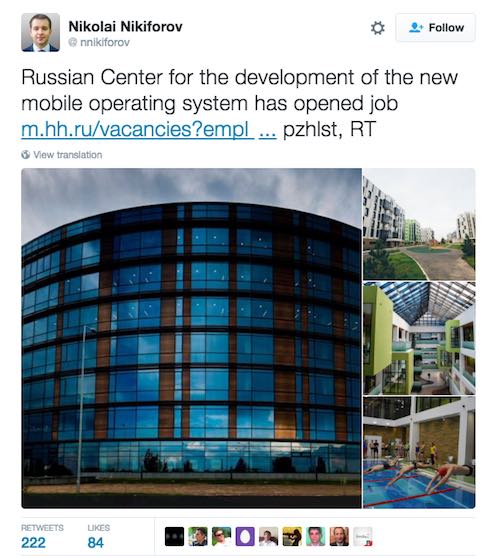
The Russian minister of communication, Nikolai Nikiforov, told the world via Twitter that Open Mobile Platform, a Russian company, is building a Linux-based global operating system and the company is currently looking for developers and engineers.russian mobile os
In early 2016, Nikiforov talked about the possibility of an Android-alternative in Russia. He discussed the possible partnership with other BRICS (Brazil, Russia, India, China, and South Africa) members to develop this operating system.
It should be noted that the new operating system is not created from scratch. Instead, it’s being created on the top of Sailfish OS, which was developed by a Hong Kong-based start-up Jolla — a company formed by former Nokia employees.
Sailfish OS is based on open source Linux kernel and features Jolla’s open source Mer Core UI and other third party components.
This effort is aimed at making inexpensive smartphones based on the new OS for the mass audience, according to Open Mobile Platform President Grigory Berezkin.
If the new operating system comes with the functions good enough to challenge Android, a good marketing in the BRICS countries–countries with the half of the world’s population–can result in something great for the new Linux-based mobile OS.
Did you find this article helpful? Don’t forget to drop your feedback in the comments section below.
Read More

Tuesday, 28 June 2016

How To Hide Your Secret Files Inside An Image

By ntech02:09 No comments
Steps to hide your secret files inside any Image!
Step1. At first from the desktop create a folder, name it CodingSec and then put some files. (For Example; put three music files)
Step2. Now suppose if you selected any three then compress those three files using WinRAR(see image). Once you created a RAR file name it as CodingSec.
Create RAR File
Create RAR File
Step3. Now just put one image as I had done, name it as Logo.jpg (file must be in JPG format). That’s it all done! Exit from that Folder.
Step4. Now Open CMD as Command Prompt from Start Type CMD hit enter. Now start typing as below listed, see image also for better understanding.
Type1: cd Desktop\CodingSec
Type2: copy /b Logo.jpg + CodingSec.rar Logo.jpg
Hit Enter
Type3: exit
Follow CMD Steps
Follow CMD Steps
You just created an image file that contains all the three files but not visible to anyone until and unless you open that image file using WinRAR Archiver.
Right Click On The Image And Open It As WinRAR Archiver
If you don’t see your WinRAR Archiver then Choose Default Programs and Browse it to the Bottom of the Windows you can see WinRAR and from there double click to make that enable and open from that file.
Now you can see that your Image file size is increased (See Image).
See Those files as selected to Hide
Note: The Image file as Logo, you can move that file to any location of the computer.
Read More

How to create a moving car effect in C programming

By ntech02:07 No comments
#include "graphics.h"
#include "conio.h"
#include "dos.h"
void main()
{
int gdriver=DETECT,gmode,i=0,j=0;
initgraph(&gdriver,&gmode,”c:\turboc3\bgi”);
for(i;i<420;++i)
{
line(0,245,650,245);
line(0+i,200,210+i,200);
line(50+i,200,70+i,170);
line(70+i,170,140+i,170);
line(140+i,170,160+i,200);
line(85+i,170,85+i,200);
line(125+i,170,125+i,200);
line(0+i,200,0+i,230);
line(210+i,200,210+i,230);
line(0+i,230,50+i,230);
circle(65+i,230,15);
line(80+i,230,130+i,230);
circle(145+i,230,15);
line(210+i,230,160+i,230);
pieslice(65+i,230,359-j,360-j,15);
pieslice(65+i,230,179-j,180-j,15);
pieslice(65+i,230,89-j,90-j,15);
pieslice(65+i,230,269-j,270-j,15);
pieslice(145+i,230,359-j,360-j,15);
pieslice(145+i,230,179-j,180-j,15);
pieslice(145+i,230,89-j,90-j,15);
pieslice(145+i,230,269-j,270-j,15);
if(j==179)
j=0;
++j;
delay(30);
cleardevice();
}
closegraph();
}
Read More

How to Hide and UnHide Any Drive in Windows Using Command Prompt

By ntech01:44 No comments

How to Hide Any Drive in Windows Using Command Prompt

Method 1 of 2
Step 1: Type CMD in Start menu search area and hit Enter to launch Command Prompt. You can also find the Command Prompt under Accessories category in Start menu. In Windows 10 and 8.1, you can right-click on the Start button, and then click Command Prompt to open the same.
Step 2: In the Command Prompt, type Diskpart and hit enter key. Click Yes if you are prompted with UAC (User Account Control) dialog-box.
                                                      DiskpartCommand_thumb
Step 3: And then type List Volume and hit enter to see list of all drives.
                                         Hide Drives
Step 4: Select the drive that you want to hide. To do this, type Select Volume G (here, G is the drive letter) orSelect Volume 8 (here 8 is the volume number)
              Hide Drives 2
              Hide Drives 3
Step 5: To hide a drive, type Remove Letter G. Here, G is the drive letter than you want to hide.
              Hide Drives 4
Step 6: You are done. Close the Command Prompt.
Also read:Keyboard Shortcuts Everyone Must Know
Method 2 of 2

To show the hidden drive, follow the steps given below:

Step 1: Follow the procedure mentioned in step 1, 2, and 3 of Method 1.
Step 2: Select the volume number for which you want to assign a drive letter and show in the explorer. TypeSelect Volume 8 (here, 8 is the volume number) and hit Enter key.
Step 3: Once selected, type Assign Letter G and hit Enter key to see the drive in explorer(replace G with the drive letter that you have previously removed).
           Show Drive
Read More
Newer Posts Older Posts Home

Pages

  • Home

Popular Posts

  • What Is A Motherboard? What Are The Different Components Of A Motherboard?
    What Is A Motherboard? What Are The Different Components Of A Motherboard? Image: Wikipedia Short Bytes: A motherboard acts as a pl...
  • Fingerprint scanners on Android phones are far less secure than on iPhones
    The  Samsung Galaxy S5's fingerprint reader security vulnerabilities  were well documented over a year ago. But if you were hoping t...
  • C program to Calculate Factorial of a Number Using ...
    #include<stdio.h> #include<conio.h> void main() { int a,f=1,i; clrscr(); printf("Factorial i : "); ...
  • Master Python: Save over 95% on 50+ hours of training
    Master Python: Save over 95% on 50+ hours of training For prog...
  • FREE! That’s Right, I’m Giving Away MILLIONS of FREE Microsoft eBooks again! Including: Windows 10, Office 365, Office 2016, Power BI, Azure, Windows 8.1, Office 2013, SharePoint 2016, SharePoint 2013, Dynamics CRM, PowerShell, Exchange Server, System Center, Cloud, SQL Server and more!
    FREE! That’s Right, I’m Giving Away MILLIONS of FREE Microsoft eBooks again! Including: Windows 10, Office 365, Office 2016, Power BI, A...
  • How to Hide and UnHide Any Drive in Windows Using Command Prompt
    How to Hide Any Drive in Windows Using Command Prompt Method 1 of 2 Step 1: Type CMD in Start menu search area and hit Enter to la...
  • 10 Best Free VPN Services Of 2016: Which One Shall I Choose?
    10 Best Free VPN Services Of 2016: Which One Shall I Choose?   Short Bytes: Due to restrictions and localization of different interne...
  • How Do I Clear My Clipboard History?
    The clipboard does not have a “history”, and unless you are using a third-party clipboard manager (more on that later), there are three qu...
  • PHP vs Ruby which programming language is better for web development
    PHP vs Ruby which programming language is better for web development PHP and ruby are trending scripting languages for the web servers...
  • Evolution of Microsoft’s Windows OS from Windows 1.0 to Windows 10
    Windows 1.0 to 10: The changing face of Microsoft’s landmark Windows operating system Microsoft, the leader in software and opera...

Recent Posts

Text Widget

Pages

  • Home

Blog Archive

  • ▼  2019 (2)
    • ▼  May (1)
      • The project management softwares
    • ►  April (1)
  • ►  2017 (7)
    • ►  July (1)
    • ►  April (3)
    • ►  March (3)
  • ►  2016 (50)
    • ►  October (1)
    • ►  September (4)
    • ►  July (2)
    • ►  June (6)
    • ►  April (2)
    • ►  March (5)
    • ►  February (28)
    • ►  January (2)
  • ►  2015 (9)
    • ►  August (9)
Powered by Blogger.

Text Widget

About Me

ntech
View my complete profile

Copyright © NTech | Powered by Blogger
Design by Flythemes | Blogger Theme by NewBloggerThemes.com